The Wrath of Kon

Dispatches, thoughts, and miscellanea from writer Jon Konrath

Tag: scrivener

Fieldstones and Moleskines

I know I said I don’t do new year resolutions, and I don’t.  But one of the things I’ve been trying to do - it’s more of a course-correction for my post-40 memory loss - is writing down every damn thing that pops in my head, with hopes of later mining this stuff for story ideas.  I know it’s something I should have started doing decades ago, but it’s something I’ve been trying to be militant about.

I just read this book,Weinberg on Writing, which talks about his “fieldstone” method.  The analogy has to do with those fieldstone walls you see on old farms.  (Watch the last five minutes of Shawshank next time it’s on TBS; they run it pretty much daily.  There’s a nice fieldstone wall in that.)  When a farmer builds one of those walls, they don’t go to Wally World and say “gimme a thousand yards of stones.”  They plow the fields, and when they hit a big stone, they pull it aside and save it.  After years of doing this, you have enough stones to build some fencing, or a nice fireplace hearth or wellhouse.  It takes time to find the right stones to fit the odd cracks and holes, but if you’re always looking, you never know when you’ll find it.

Most of the art of writing has to do with dragging your subconscious mind into your conscious mind and then dumping it onto pages in a way that can transfer into someone else’s conscious mind and creep into their subconsciousness.  Anyone that tells you it’s about marketing or the three-act structure or hitting plot points or what your cover looks like is full of bullshit.  That’s about selling books.  Salvador Dali wasn’t a genius because he painted the crying clowns and prairie field landscapes that he knew would sell; he was a genius because he would have fucked up dreams and then immediately paint them with no censorship or conscious thought, and those paintings haunt you and are hard to shake because they drill into the bottom of your mind.

The problem is, you can’t sit at a blank page and consciously think, “okay, let’s dump my unconscious mind into this buffer.”  You just see fits and spurts of what you need: while you’re in the shower, when you’re cleaning up cat shit, when you’re stuck in an endless meeting.  Something pops into your head, and it would be awesome in a story.  And then, if you’re above 40 and have spent your lifetime drinking from aluminum cans, it’s gone in ten seconds.

This requires some way to always capture this shit.  The current strategy is a three-pronged approach:

  1. The iPhone notes program.  It’s pretty easy to use; it syncs up with IMAP in my gmail account, so I can also get at it from my Mac or my iPad, making cut/paste pretty easy.  The downside is typing with my thumbs, and it’s not always easy to whip out a phone and tap away.

  2. A google docs document that does the same as above.  I use this less and less, but there are times where I’m not at any of the above three iOS machines, or where I need to cut/paste in something sizable, like a big chunk of an article.

  3. A moleskine notebook.  The classic, hardcover, lined.  I’ve got a little folding pen that bungees right into the elastic cord, and it stays in my jacket pocket or bag at all times.
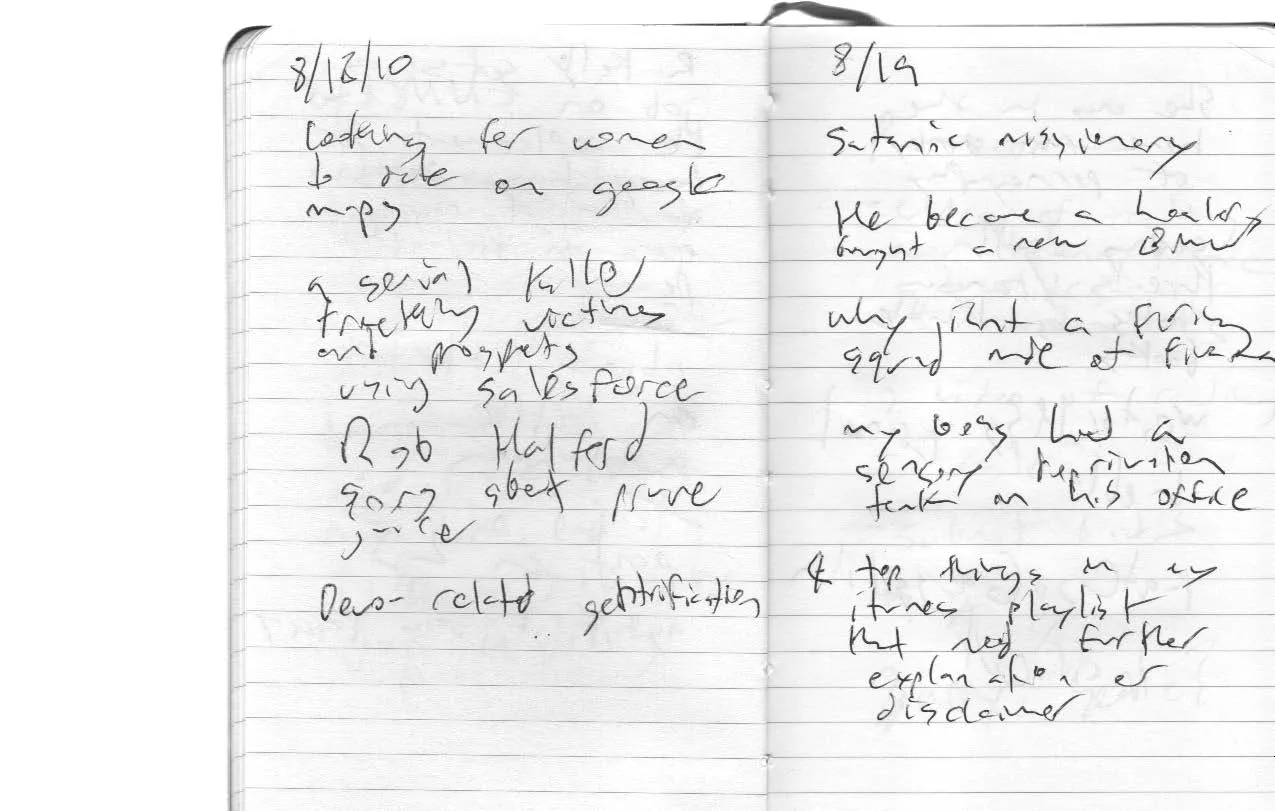
moleskine_Page_29

There’s a certain tactile satisfaction to keeping notes in a moleskine; that’s a huge plus.  And there’s an overwhelming joy in filling up one of these leather-bound pocketbooks, like you’ve accomplished something more than just dumping ASCII into a buffer.  I just finished one of the books, and it took me almost two years, just because I write in fits and spurts, and this “capture everything” movement just got into gear.

Now here’s the real problem with the moleskine: how to move these fieldstones into the production line.  The iPhone notes thing is easy: Ctrl-C, Ctrl-V.  The notebooks - well, first my handwriting is horrible.  And I barely hit the lines to get all of this stuff parallel to each other so OCR can handle it.  And I can’t ship it off to someone and have them transcribe it, since I can barely read it.

The current workflow is to scan the entire thing in as a single PDF using Preview and my printer/scanner.  This take some work, only because you end up with a 50-meg file, and there’s no way you’ll do a hundred scans without Preview crashing at least five or six times.  (I know, Windoze people are like “ha, it doesn’t just work”.  But I was able to use a piece of software that came on my system for free, without spending 19 days researching what third-party program works with my brand of scanner, brand of USB chipset, version of Windows, brand of USB cord, IRQ settings, motherboard configuration, and then find out the software I paid fifty bucks for is a “lite” version and the “pro” version costs $999.)

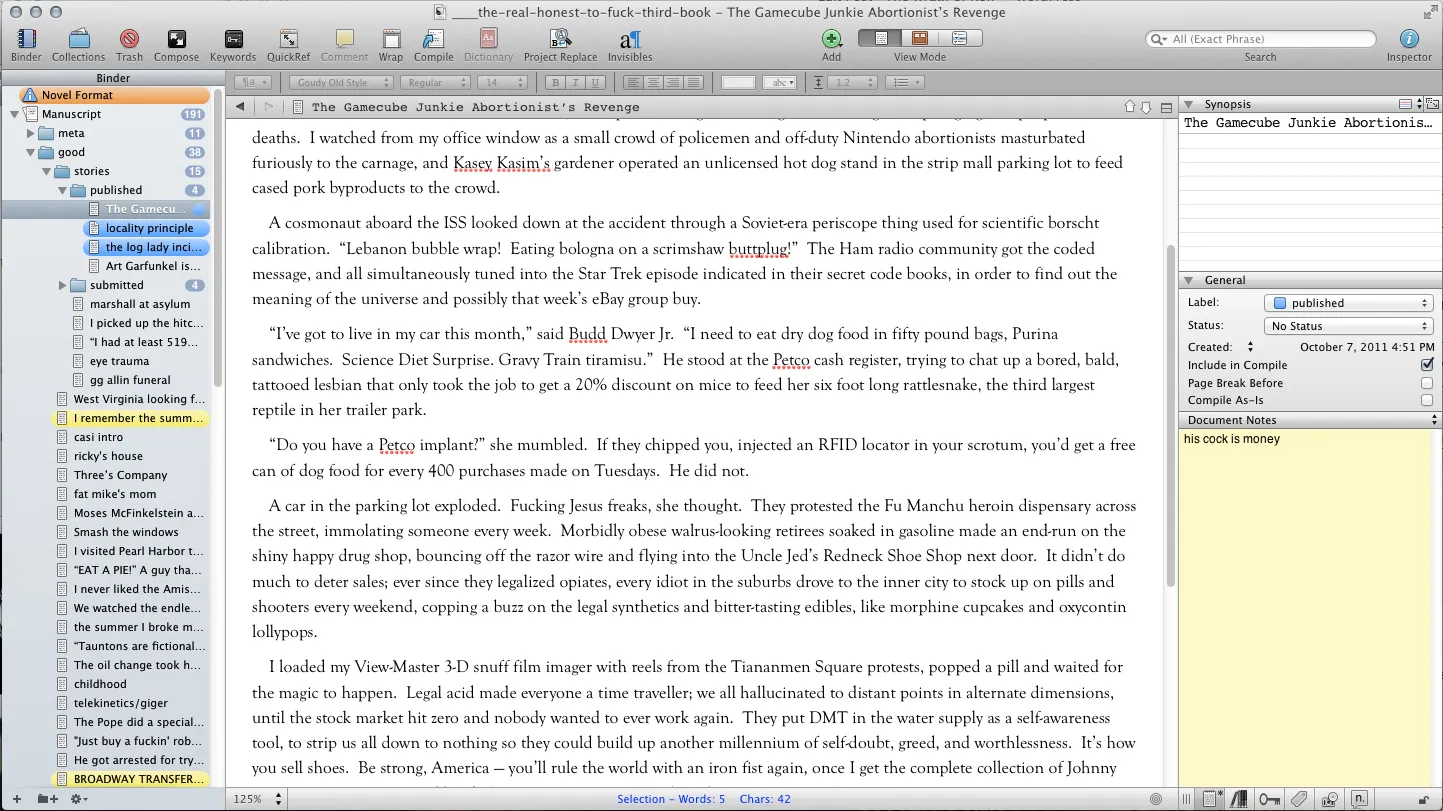
Then, I split the PDF into a hundred or so PNG images.  I have a Scrivener project that’s just a dumping ground for all of my fieldstones, failed stories and books that still have some reusable bits, and whatever else.  So I create a folder for the book, and dump the PNGs onto a file in the binder, then split that up into a bunch of files, and either type in the bits of each page, or ignore them.  (Sometimes a page will just be a partial grocery or todo list, or something I’ve already used, so not everything is gold.)

The process of turning these fieldstones into working stories and books - that’s another project, and a workflow I haven’t mastered yet.  But a lot of The Earworm Inception  came from fieldstones that were grouped and fleshed out, and this next book is using a lot of stuff collected like this.  Some of them will be duds; some just become a single line in someone’s dialogue, or a little aside.  And some will be the nucleus of an entire work.

So I’m having fun, transcribing this stuff, finding little gems.  And I’ve got the next Moleskine up and running, ready to capture whatever happens in the back of my head during my TPS report filing during the day.
More Scrivener Tips

Screen-Shot-2012-03-24-at-9.20.34-AM

I switched to using Scrivener as my full-time writing tool last year, and still love it.  I always had a lot of trouble coming up with a good way to seamlessly manage a bunch of little chunks of writing, and now I have a perfect way to do that.  And it’s not trapped in a weird proprietary format; I can easily export it into different forms. Since last April, I’ve used it to put out two books (Fistful of Pizza and The Earworm Inception) and re-release Rumored to Exist as a Kindle book. I’ve also been using it for other ongoing projects, and have been pulling in all of my old books and writing, with eventual hope of either rereleasing them or cannibalizing them for parts.

One thing about Scrivener is that a program this feature-rich is going to either have a huge learning curve, or a lot of features you’ll  never figure out, or both.  And while Scrivener comes with a huge 446-page manual, I’m often googling away to find the solution to some issue.

So here are a few things that I’ve found that were not amazingly clear in the docs.  Part of my reason for posting these is to help out other Scriveners, but I’d be lying if I didn’t say that I just posted this crap here so I’ll remember it six months from now after I’ve forgotten it, because apparently now that I’m on the north side of the 40 year mark (and I’ve spent a lifetime drinking out of aluminum cans), that happens.

OK, here goes:

  1. Every word processor has its own little shorthand to enter stuff like returns and tabs and other invisible characters into the find and replace dialog boxes.  And Scrivener doesn’t use the typical ^t or \t.  Instead, when you’re doing a find or replace, hold down the Option key and type your special character.  (Your Option key is also known as the Alt, depending on your hardware and key setup.  No idea what it should be on a PC.)  The characters are not shown in the dialog box, but you’ll know you entered them because the little X to clear a field will be visible, showing you’ve got some text in the blank.
  2. If you’ve imported or pasted a bunch of text that was originally a text file, it may have a hard return at the end of every line, like around the 70 to 80 character mark. The way to drive yourself insane fixing that is to move to the end of each line, hit the delete key, enter a space if needed, move down a line, repeat 9374 times.  Don’t do that.  Open a find/replace, and put an Option-Enter in the find box, and a space in the replace box.  You might first have to search for each double enter and replace them with qqqqqqqq, then replace the single enters with spaces and the qqqqqqqqs with enters.  Same for enters followed by tabs.
  3. You can drag and drop text files into the Scrivener binder (that collection of file pieces on the left side.)  But you can’t drag and drop HTML into your Manuscript.  Why?  I don’t know; the docs say you can.  What you can do is drag and drop into any folder other than the Manuscript.  For example, you can drag and drop a web page into the Research folder.  (This is actually a good way to keep a bunch of research material handy.  If you’re offline and you need to get at that wikipedia page about some historical figure or space program or whatever, you can keep it handy within your project.)
  4. If you do the above, you’re left with an uneditable page that can’t be put in your manuscript.  To edit it and move it to the manuscript, do a Documents > Convert > Web Page to Text.  It can’t be undone, and you’ll lose some formatting, but it will become a fully editable text document.
  5. Composition mode.  You know that wave of full-screen, no-distraction writing programs?  No need to buy anything else; just do a Command-Shift-F.  I bump up the width and font, and have a nice picture of Venice Beach in the background, but do whatever brings you to your happy place where you can write.
  6. Typewriter Scrolling lets you change scrolling so your current line is in the middle of the screen, which works great in Composition mode.  Unfortunately, if you set this by using the menu option of Format > Options > Typewriter Scrolling and you’re not in Composition mode, it doesn’t work.  And if you’re in Composition mode… you can’t see the menus.  Solution?  Do a Command-Shift-T when you’re in Composition mode, and it’ll toggle this on.
  7. Labels are neat, but I find the default settings useless.  (They’re stuff like “chapter” and “scene”, but those are things I group with folders and documents, so who cares.)  Status is also neat, but there’s not an easy way to see status in the project binder.  So I edit the labels and change them to stuff like “Needs work”, “eh”, “golden”, “garbage”, and so on.  Then I go to View > Use Label Color In and pick Binder.  Then all of these status colors are shown in the binder, and I can easily find what needs work.
  8. This isn’t a Scrivener tip, but it is an iPad tip that helps when you’re releasing on Kindle.  If you need to see what your mobi file looks like in the iPad Kindle app, go to iTunes, click on your iPad, go to Apps, and scroll down to the File Sharing heading.  Click on the Kindle app, and click Add, and you can copy your mobi file to the Kindle app and proof away on the device without sending anything to the KDP store.
  9. (Not relevant anymore; macOS now does this by default.) If you don’t have it, get Growl and configure it to your liking.  It’s a universal notification system that a lot of different apps can use to send status updates in little popup alerts on your screen, sort of like how Outlook tells you about new mail messages.  You can turn on Growl support in Scrivener and it will open a popup when you’re saving or when you hit your target count.  Also, Growl may prevent you from going to your mail program every damn time you get a new email, if you get a popup and can see it’s only junk mail and you don’t need to stop writing.  And a Growl hint: if you get a ton of popups, Option-click one and they will all vanish.
  10. I use a Scrivener project called “plotomatic” as a catch-all for all of my notes, unexplored ideas, and leftovers.  It’s much easier than having a scattering of notes in ten different places, and it’s easily searchable.  Think about an easy way to do something similar, to limit the amount of searching you have to do for old stuff.

Hope this helps. Happy Scrivening, and please get in touch with any of your favorite tips!

On writing tools

In my last post, I talked about my old standby writing tool, emacs, and how I’ve made a gradual break from it.  So here’s what I’ve been doing.

First, there was a recent stream of different full-screen writing tools dumped on the market.  It’s the latest fad: some program that closes off everything but a single window to write.  To me, that seemed largely stupid; you just expand your editor window full-screen and shut off your IM program, right?  Well, there’s more to it than that.

First, I have horrible ADD or ADHD or something.  Not diagnosed, no pills or doctors, but I - what was I talking about?  Seriously, I have a hell of a time focusing on writing these days, especially with all of the distractions out there in the internet world.  And writing involves a certain amount of self-hypnosis, that ability to suspend disbelief and not even think about writing, but still type it on the page and channel your subconscious and capture it into your work.  And it’s damn hard to do that when you can click on the other window to check your twitter feed and derail the whole thing.

For a while, I would either turn off my wifi, or I would use this program called Freedom, which completely locks your internet connection unless you reboot.  (And those of us who don’t use Windows aren’t in the habit of rebooting hourly, so this is a Big Deal.)  I know, I should just be able to shut off wifi, or just not click on that god damned browser window.  But I can’t.  It’s nice to be able to completely childproof the process.

I also experimented with trying to fake a full-screen writing program with emacs, adding some margins and pumping up the font size, so I could go full-screen and only have a nice blank page to stare at.  But one day, in a fit of writer’s block fury, I went to the app store and picked up a copy of OmmWriter.

Screen-shot-2011-04-17-at-10.49.49-AM

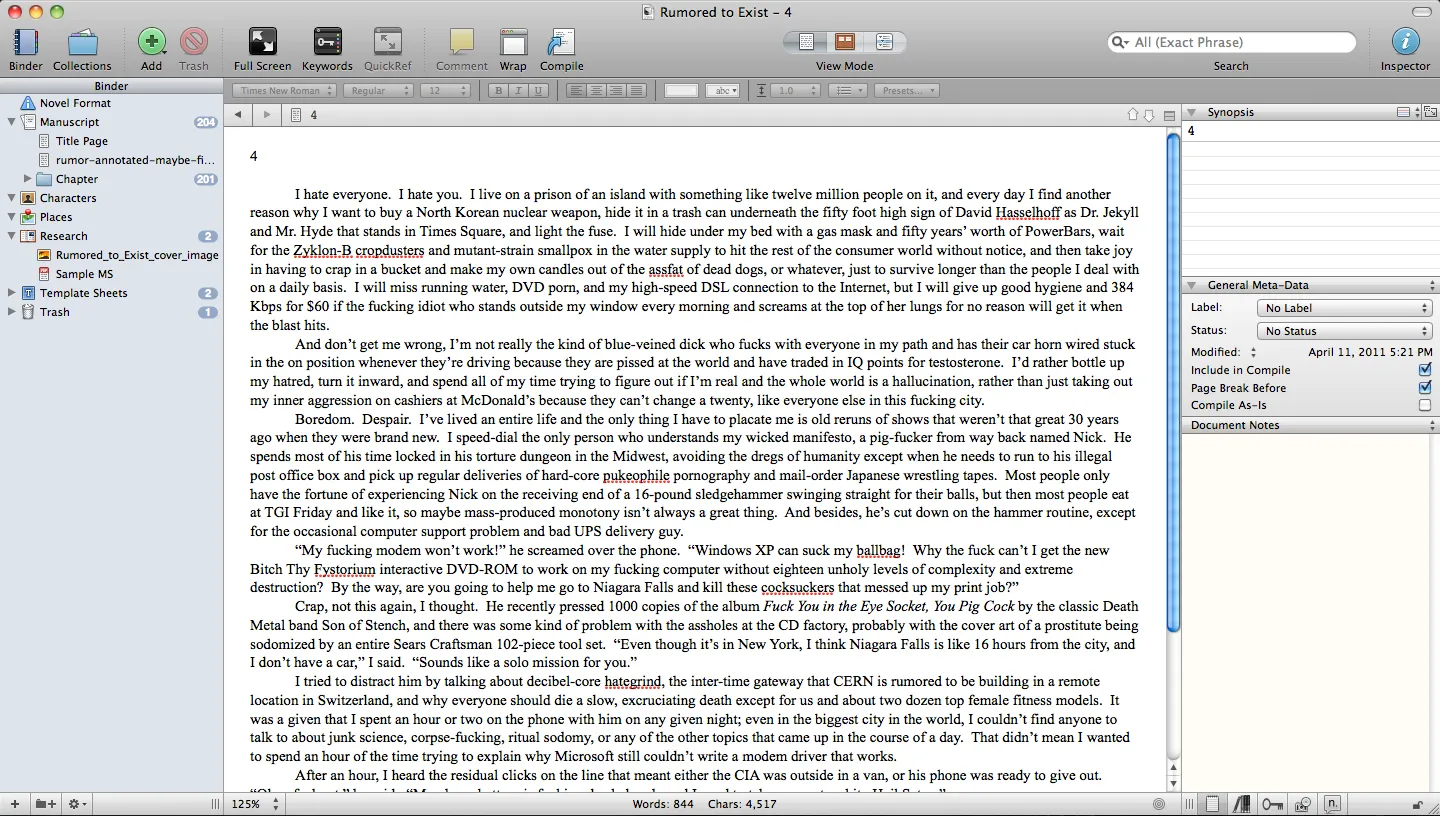
OmmWriter is pretty damn amazing. Basically, you start it, and it opens a text editor over your entire screen, plain and simple.  But the little details are what make it so slick.  First, it shuts off all notifications.  If you’re using Growl to sling popups when you get new mails and whatnot, those all get halted.  Next, it draws this background picture of a winter landscape that looks like some lost Tori Amos album back cover.  And as you start typing, the borders and minimalist menu buttons fade away.  The fonts are very readable and high-design typography too; no more Courier New or whatever the hell emacs uses by default.  There’s also a word count tally at the bottom of the resizable text area that will vanish as you get to work.  And there’s a choice of several mellow, new-agey ambient soundtracks that play in the background.  And all of this sounds hokey, like I’m about to talk to you about an opportunity to resell some healing crystals to your family and friends, but it seriously works.  I don’t know why, but it made it much easier to fade into the work.  It was awesome for journal entries and articles and brief bursts of automatic writing.  But it was not a full-fledged content management system; there’s no way I could write a book in this thing.

Side note: this thing uses OSX’s text editing widget or engine or whatever you call it.  And something I did not realize: most of emacs’s key shortcuts work in any program that uses this.  So if you reflexively use Ctrl-A and Ctrl-E to jump to the start and end of a line, that totally works, either in the Mac’s TextEdit, or a program like Ommwriter.

So I’ll cut to the chase: after a few other trials, I finally got into using Scrivener.  And it has completely changed the way I write, because it finally does what I need to keep organized.

One of the biggest things is I need a system that can deal with me writing in “chunks”.  There are other virtual index card systems, but they typically don’t let you meld the cards into one huge work.  And outline programs are great (I’m a long-time user of OmniOutliner) but I always hated trying to reconcile changes in the actual writing with changes in the outline and vice-versa.  I wanted a way to have the outline be the document.

Screen-shot-2011-04-17-at-11.14.24-AM

Scrivener is a lot like modern IDEs you’d use to write code: there’s a binder that’s a project-level collection of folders, with one folder being the actual manuscript, and the other folders being whatever the hell you want.  In a folder, you can create other folders, or you can create documents.  So let’s say my manuscript has a dozen chapters, I can make each of those a folder.  Then in each folder, I can have a bunch of text documents, one for each scene or paragraph or whatever the hell I want.  I can drag those around in any order, chop them into smaller pieces, merge them, add more, delete them, whatever.  Then when I click on my chapter folder in the left navigation pane, I’m presented with every piece in that folder, all glued together into one document.  Click at the root level, in the manuscript folder, and you’ve got your entire book.  It makes it very easy to write in fragments, and move things around easily.  This is pure magic for me.  I really wish I had a program like this when I wrote Rumored to Exist - it would have saved me at least a year of time.

Here’s the real beauty.  You like to work with index cards?  Each of these fragments has an associated title and page of metadata that you can see in the right pane inspector.  You can type in a little blurb of what happens in your fragment, or what needs to happen, or what you want to fix.  Then you click a button in the toolbar, and instead of seeing the text editor, you see a corkboard with a bunch of index cards, each one being that metadata for each text document.  If you don’t like the order, drag them around and make it work.  When you go back to the text editor, all of your pieces will be reordered.  You want an outline?  Click another button in the toolbar, and you see all of your documents and folders and stuff in an expanding/collapsing outline.

I take a lot of notes when I’m writing, and have all sorts of loose text documents and other crap associated with a project: loose wikipedia articles, jpeg images, maps, whatever.  Instead of throwing all of that in a directory on my hard drive, I can keep it all in a folder that resides outside of my manuscript.  And you can totally hyperlink this crap, too.  So you can have a page per character, with facts and stats about the person, a character sketch or notes or whatever else, and you can drop links in there to scenes where they appear.

There’s a full screen mode, too.  It’s not as pretty as the OmmWriter one, and it does not have any Brian Emo ripoff music playing, but it works.  It’s pretty easy to jump back and forth between the full screen and the three-pane mode, which is good for me; I can focus on inputting long passages of text, then jump back into org mode and move things around.  I’ve still got those emacs shortcuts too, because it uses that Mac text engine.

One of the big issues I had too was import and export.  I really can’t have my stuff locked into a proprietary format where I can’t get it to a publisher or to someone for review.  Scrivener has very good import and export functions; you can work in this weird nonlinear format, and when you’re ready to lock it down, you press a compile button and jet out a copy in RTF for your Microsoft Word-impaired buddies.  Need it in plain text, or Final Draft, or HTML, or PDF?  No problemo.  It gives you a fully submittable, standard format document that’s ready to go to the world.  And here’s something awesome: you can press a button, and it will spit out a perfectly formatted .mobi file, ready to submit to the Kindle store.  (It does .epub too, if you’re not down with Amazon.)  All of the exports are very configurable, too.  So if you need different headers or footers or page breaks or fonts or whatever, you can screw around with that stuff to your heart’s content.  You can also do weird stuff like import or export parts of your document automatically.  So you can do stuff like use a standard text editor to take notes on another computer or your phone, then dump that stuff into Dropbox or a shared directory, and Scrivener will pull those files into your binder, or vice-versa.

Screen-shot-2011-04-16-at-11.02.28-PM

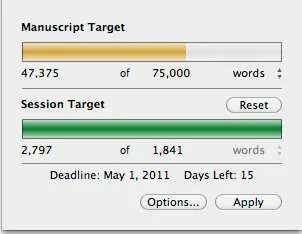
Another big thing for me is statistics.  I need to know at any given second how many words are in a project.  Whatever you have open in the text editing pane (chapter, fragment, manuscript, whatever) has a word count in the bottom bar.  But you can also do a quick Ctrl-Shift-T and get a word count for the project.  You can also set a goal date and count, and it will calculate how many words you have to write that day, and pop up a nice little reminder in Growl when you hit your target.

There are tons of other features I will never figure out.  It has comments, and little flags you can set to indicate if something is a draft or a revision, and snapshots, and citations, and tons of search and replace things I have not figured out.  But the ability to write in a completely nonlinear fashion is a big thing for me, and this works way better than any other system out there.

Anyway, if you’re in a similar predicament, check out their site and download the free trial.  The learning curve is steep, and I initially had a big freakout trying to figure out how to carve my next book project into the right type of pieces.  But I’ve got the next book underway and it’s motoring along fine.  And I’ve imported both Summer Rain and Rumored, and I’m vaguely thinking about dumping those to the kindle.

Enough babbling about tools.  Time to get back to work.